

· Johannes Millan · 4 min read
GitHub Issues as a Daily Plan in Super Productivity
If your work lives in GitHub Issues, your real to-do list may be scattered across repositories, saved views, filters, and a notifications tab you’ve learned to ignore. The fix isn’t another dashboard to check – it’s pulling the GitHub work you actually plan to do into one focused daily plan, where you can timebox it and track time locally.
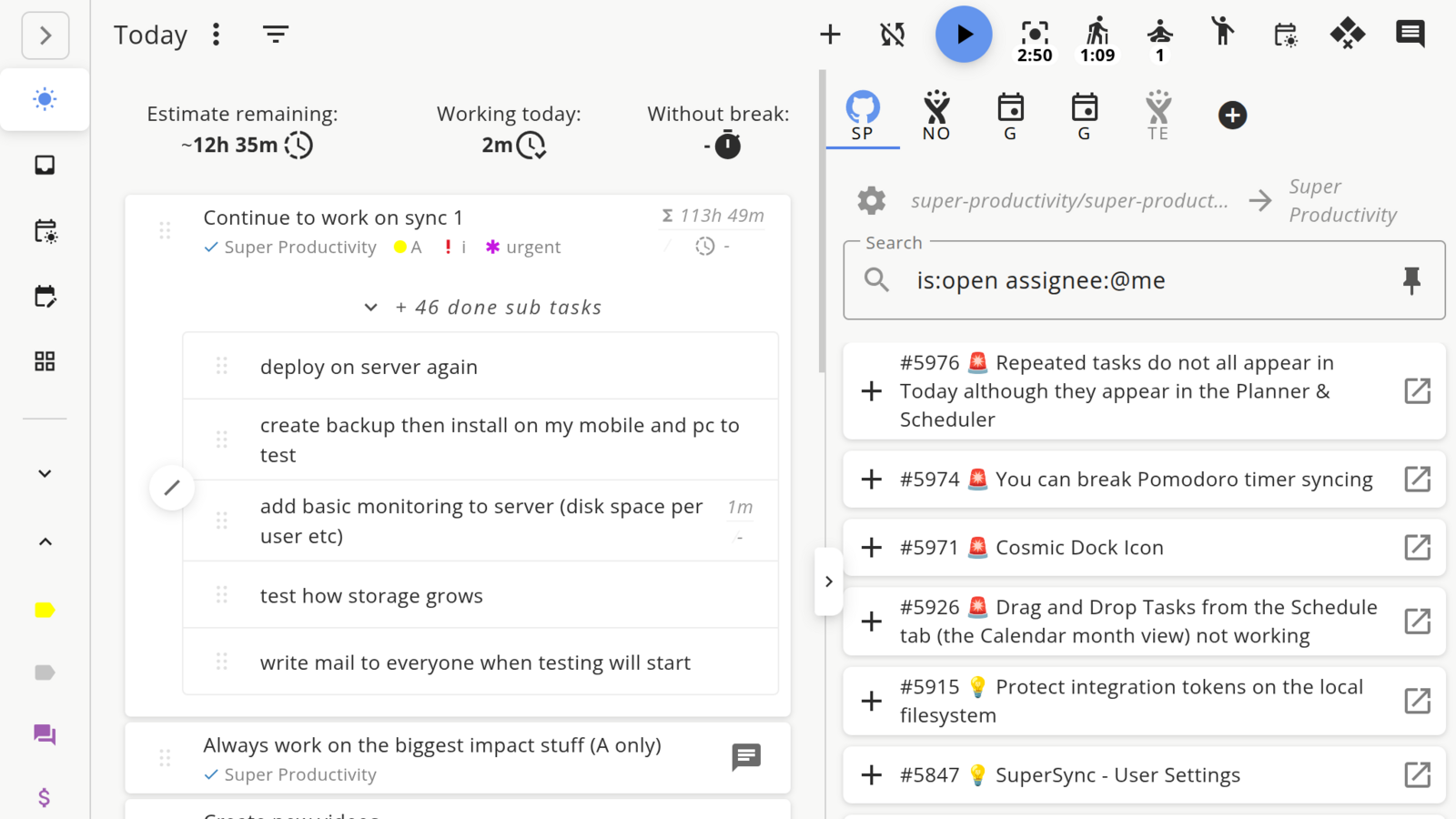
That’s exactly what Super Productivity’s GitHub integration is for: it imports issues from configured repositories, can include pull requests when enabled, and gives you tasks you can plan your day from. This article walks through the daily workflow. For setup details and FAQ, see the GitHub integration page; for the broader picture of keeping focus while you ship, the Developer Productivity Hub ties it together.
1. The Real Problem Isn’t GitHub – It’s the Sprawl
GitHub Issues is an excellent issue tracker, and GitHub Projects can organize work with custom fields, views, and saved filters. What GitHub does not give you is Super Productivity’s local-first personal execution layer: a focused Today list, local notes, estimates, timeboxes, and a task timer attached to the work you choose for today.
Rebuilding the plan across tabs is context switching, and that friction adds up quickly. The goal is to collect the relevant issues into Super Productivity, choose today’s work once, and then stop reopening GitHub just to decide what to do next.
2. Connect GitHub (Once)
Setup is short once you have a repository name. For private repositories, issue updates, and the default assigned-issues query, create a personal access token, paste it into Super Productivity, and configure the repository you want to pull from. With a token, the default backlog query focuses on open issues assigned to you; pull requests can be included when you enable the option or adjust the query. Labels, milestones, and issue links stay visible. The token stays on your device, and API calls go directly to GitHub, so nothing routes through a third-party server.
The GitHub integration page has setup guidance and token-scope notes. For a reachable GitHub Enterprise Server instance, configure the appropriate custom API URL before planning from imported issues. The rest of this article assumes you’re connected – it’s about what you do next, every morning.
3. Build Today From Your Backlog
Now the workflow that matters. Your imported issues are inputs, not a plan – so each morning you choose.
- Drag today’s issues into your daily list. Pull the two or three you’ll actually work on into your focused “today” view and leave the rest in the backlog where they belong.
- Give each a time estimate. A rough estimate turns a vague ticket into a plannable block and makes your day’s capacity honest.
- Timebox the important work first. Schedule deep issues before the reactive ones arrive. If you also juggle Jira or GitLab, unifying all three into one list keeps the same workflow intact.
Pro tip: Treat the backlog as read-only during the day. Decide once in the morning, then execute without re-opening GitHub to “just check.” Notifications can wait until your next planning slot.
GitHub Issues vs. a Personal Task Manager
| GitHub Issues | Super Productivity | |
|---|---|---|
| Role | Team source of truth | Your personal focus layer |
| Owns | Discussion, labels, milestones, history | Daily plan, timeboxing, time tracking |
| Audience | The whole team | Just you |
You don’t replace one with the other. You let each do the job it’s good at.
4. Track Time Where the Work Happens
Because each imported issue becomes a real Super Productivity task, you can start a timer on it. Time is tracked locally on the task linked to the GitHub issue, so you’re not keeping a separate spreadsheet of hours.
At the end of the week, export a worklog or time sheet and you have a record based on the time you tracked. That record can sharpen your estimates and make status updates less hand-wavy – the same loop covered in our roundup of time tracking for developers. Over a few sprints, “this’ll take a day” can become less of a guess.
Next Moves
Two steps to get the sprawl out of your morning:
- Configure one repository today and pull in the assigned issues you actually need to plan.
- Plan tomorrow tonight: drag two or three issues into your daily view so you start the day executing instead of hunting.
For setup guidance, privacy details, and frequently asked questions, head to the GitHub integration page.
Frequently Asked Questions
How do I turn my assigned GitHub issues into a daily to-do list?
Once issues from your configured repositories are synced, drag the two or three you'll actually tackle today into Super Productivity's focused "Today" view and leave the rest in the backlog. Give each a time estimate so your day has an honest capacity, then timebox the deep issues before the reactive ones arrive.
What gets imported from GitHub?
With a token and the default backlog query, Super Productivity focuses on open issues assigned to you from configured repositories. Pull requests can be included when you enable that option or adjust the query. Labels, milestones, and issue links stay visible so you can plan from the work that is actually on your plate.
Can I plan my day across multiple GitHub repositories at once?
Yes. Configure each repository you want to pull from, then plan the imported issues from Super Productivity instead of rebuilding your day across GitHub tabs. Keep the backlog outside Today and pull only the top few issues into your daily view.
Can I track time on GitHub issues?
Yes. Start a timer on the Super Productivity task linked to the GitHub issue. The time is tracked locally in Super Productivity, and at the end of the week you can export a worklog or time sheet based on the time you recorded.
Is the GitHub integration free?
Yes. The app and GitHub integration are free and open source under the MIT license. Optional sync hosting is separate. The integration supports custom API base URLs, which can be used for GitHub Enterprise Server when the instance is reachable from the app and exposes the expected REST API.
Related resources
Keep exploring the topic
Integration Directory
Connect Jira, GitHub, GitLab, and CalDAV in a few clicks–no extra glue code required.
Read moreHow to Sync Google Calendar with Super Productivity
Connect Google Calendar to Super Productivity to see your meetings next to your tasks and time-block work straight onto your calendar – with OAuth sync that keeps data on your device.
Read moreCode Review Best Practices That Protect Focus
Research-backed strategies for giving and receiving code reviews without destroying your flow state. Learn to batch reviews, reduce cognitive load, and turn feedback into growth.
Read moreStay in flow with Super Productivity
Plan deep work sessions, track time effortlessly, and manage every issue with the open-source task manager built for focus. Concerned about data ownership? Read about our privacy-first approach.

About the Author
Johannes is the creator of Super Productivity. As a developer himself, he built the tool he needed to manage complex projects and maintain flow state. He writes about productivity, open source, and developer wellbeing.